Automate Conversations Visually Without Any Code
Create smart WhatsApp chatbots using a simple drag-and-drop builder. Answer customer FAQs, capture contact parameters, branch logic conditionally, and trigger instant webhook lookups automatically.
- No credit card needed
- Built-in template integration
- API webhooks enabled
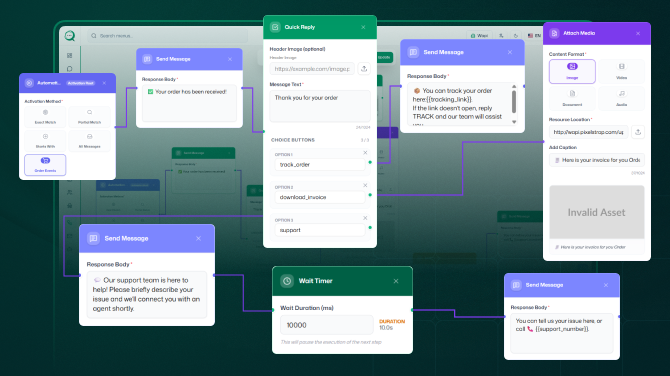
All Conversational Flow Nodes
Connect simple, functional visual components to outline paths for any client inquiry. Filter nodes by core category to discover options.
Automation Entry
Launches the bot sequence whenever keyword matches, campaigns trigger, or dynamic variables match.
Send Message
Sends a rich text format layout bubble with personalized custom attributes directly to customers.
Quick Reply
Configures clickable buttons (up to 3) allowing clients to choose options instantly without typing.
Form Flow
Triggers sequential nested message collections to capture customer details like a visual form.
Send Template
Sends pre-approved Meta message templates with headers, footers, and custom variable parameters.
Call to Action
Sends interactive layout buttons linked to phone dialing or external web URLs (e.g. pay links).
Selection List
Presents a structured menu list containing sections and row items (up to 10) for organized options selection.
Attach Media
Appends rich media files like PDFs, images, invoices, or audio tracks to the chat feed.
Send Location
Sends map coordinates (latitude/longitude) of offices or pickup points directly to the user.
Assign Chatbot
Switches active chat handler responsibilities to a separate flow or sub-routine chatbot sequence.
Wait Timer
Delays flow progression by custom times (seconds, minutes, hours) to humanize bot pacing.
Wait for Reply
Halts the flow process until the customer replies. Captures their entry for evaluation.
Logic Control
Evaluates standard rules (business hours checks, country code filters, prior selections) to route users.
External API
Performs HTTP request routines (GET, POST, PUT) to fetch or update records in dynamic databases.
Webhook
Dispatches trigger events containing user attributes to other platforms (Shopify, CRM) instantly.
Save Response
Persists the values of user responses directly into custom fields in your database layout.
Google Sheets
Appends rows or searches values in your integrated Google Spreadsheets spreadsheet in real-time.
Calendar Event
Connects with scheduling software to create meetings or save appointment events on the calendar.
Assign Tag
Appends a categorizing label (e.g. VIP, Refund Needed) to the contact profile timeline.
Add to Segment
Adds the contact to a segment folder for bulk broadcasting and campaign target filtering.
Update Contact
Modifies variables on contact models like name, preferred language, or alternate coordinates.
Proven Chatbot Flow Recipes
Explore how standard node categories compile into production-ready visual automation sequences.
Lead Qualification & Booking
-
01
Automation Entry (Start)
Triggers flow when user clicks Facebook Ad button payload or sends "Book".
-
02
Form Flow (Messaging)
Asks qualification details: company size, name, and email sequentially.
-
03
External API / Webhook (Integration)
Calls API webhook to check calendar availability slots dynamically.
-
04
Calendar Event (Integration)
Books meeting automatically, posts calendar event, and replies confirmation text.
Order Status Track Lookup
-
01
Automation Entry (Start)
Matches incoming keywords containing "Track", "Order", or "Delivery status".
-
02
Wait for Reply (Utilities)
Asks client: "Please enter order ID". Pauses flow execution until they reply.
-
03
Google Sheets (Integration)
Searches Spreadsheet order rows automatically to find the match ID status.
-
04
Send Message (Messaging)
Pulls status variable value and triggers WhatsApp message: "Your order is Shipped".
Support Triage & Escalation
-
01
Automation Entry (Start)
Launches when a contact sends general help queries or matches nothing else.
-
02
Logic Control (Logic)
Checks rules: Is the current server time between 9:00 AM and 6:00 PM?
-
03
Selection List (Interactions)
Displays interactive menu categories (Sales, Technical, Billing, FAQs).
-
04
Assign Chatbot (Interactions)
If customer clicks Technical, switches thread to human Support Shared Inbox.